


Writing
This page outlines how to write for Fleet, including how to contribute to Fleet's articles, handbook, and docs, and how to write in the style of the Fleet brand.
Writing using the principles on this page ensures that content on fleetdm.com, the docs, and the handbook looks consistent.
What is "markdown"?
Markdown itself is a simple formatting syntax used to write content on the web. In order to publish content like docs, handbook entries, and articles, you must format your content in Markdown.
Contributing to the handbook
To contribute to a handbook page:
- Click "Edit this page."
- Make your changes in the browser. (The language is Markdown)
- Click "Propose changes."
- Request a reviewer by clicking the gear and picking only one. Choose the reviewer whose face is on the handbook page when you view it on fleetdm.com.
- Click "Create pull request."
All done!
Adding a new handbook page
To contribute a new handbook page:
- Determine where the new page should live in the handbook. That is, nested under either: a. the "Company" handbook, or b. the handbook for a particular division (Engineering, Product Design, Customer Support, Sales, Marketing, Finance, IT & Enablement)
- Locate the appropriate folder for the new page in the GitHub repository under
handbook/. - Create a new markdown file (like one of these). A simple, easy way to do this is by clicking "Add file" on GitHub.com.
a. Name your new file the kebab-cased, all lowercase version of your page title, with
.mdat the end. (For example, a page titled "Why this way?" would have the file path:handbook/company/why-this-way.md.) b. At the top of your new page, include an H1 (# Page title here) with the same name as your page. c. At the bottom of your new page, include the appropriatemetatag to indicate the page maintainer. (This is usually the same person who is the maintainer of the top-level page. The easiest way to do this is to copy the tags from the bottom of the top-level page and paste them in to your new page, changing their values to suit, as-needed.) - Submit your change, requesting review from the maintainer of the top-level page.
Note: GitHub should automatically request review from the right person when submitting your merge request, thanks to CODEOWNERS. Configuration for the auto-approval bot should also be taken care of automatically, so there's no further action needed from you.)
Articles
Article meta tags
We use <meta> tags in Markdown articles to set metadata information about the article on the Fleet website. The values of these tags determine where the article will live, and how the article will be displayed on the website.
- Required
<meta>tags - If any of these tags are missing, the website's build script will fail with an error.articleTitle: The title of the article.authorFullName: The full name of the author of the article.authorGithubUsername: The Github username of the author.category: The category of the article. determines the article category page the article will be shown on.
Note: All markdown articles can be found at fleetdm.com/articles
- Supported values:
releases- For Fleet release notes. Articles in this category are available at fleetdm.com/releasessecurity- For security-related articles. Articles in this category are available at fleetdm.com/securingengineering- For engineering-related articles. Articles in this category are available at fleetdm.com/engineeringsuccess stories- Articles about how/why Fleet is being used by our customers. Articles in this category are available at fleetdm.com/success-storiesannouncements- News and announcements about new features and changes to Fleet. Articles in this category are available at fleeetdm.com/announcementsguides- Non-reference documentation and how-to guides. Articles in this category are available at fleetdm.com/guidespodcasts- Episodes of Fleet's podcast. Articles in this category are available at fleetdm.com/podcasts
- Supported values:
publishedOn: An ISO 8601 formatted date (YYYY-MM-DD) of the articles publish date. If the article is a guide, this value should be updated whenever a change to the guide is made.
- Optional meta tags:
articleImageUrl: A relative link to a cover image for the article. If provided, the image needs to live in the /website/assets/images/articles folder. The image will be added to the card for this article on it's category page, as well as a cover image on the article page. If this value is not provided, the card for the article will display the Fleet logo and the article will have no cover image.description: A description of the article that will be visible in search results and social share previews. If provided, this value will override the generated meta description for this article. otherwise, the description will default to[articleTitle] by [authorFullName].
Example meta tag section:
<meta name="articleTitle" value="Building an effective dashboard with Fleet's REST API, Flask, and Plotly: A step-by-step guide">
<meta name="authorFullName" value="Dave Herder">
<meta name="authorGitHubUsername" value="dherder">
<meta name="category" value="guides">
<meta name="publishedOn" value="2023-05-22">
<meta name="articleImageUrl" value="../website/assets/images/articles/building-an-effective-dashboard-with-fleet-rest-api-flask-and-plotly@2x.jpg">
<meta name="description" value="Step-by-step guide on building a dynamic dashboard with Fleet's REST API, Flask, and Plotly. Master data visualization with open-source tools!">
Linking to a location on GitHub
When adding a link to any text in the docs, handbook, or website always be sure to use the canonical form of the URL (e.g. "https//www.fleetdm.com/ handbook/..."). Navigate to the file's location on GitHub, and press "y" to transform the URL into its canonical form.
Fixing a broken link
For instance when a broken link is discovered on fleetdm.com, always check if the link is a relative link to a location outside of /docs. An example of a link that lives outside of /docs is:
../../tools/app/prometheusIf the link lives outside /docs, head to the file's location (in this case, https://github.com/fleetdm/fleet/blob/main/tools/app/prometheus.yml)), and copy the full URL into its canonical form (a version of the link that will always point to the same location) (https://github.com/fleetdm/fleet/blob/194ad5963b0d55bdf976aa93f3de6cabd590c97a/tools/app/prometheus.yml). Replace the relative link with full URL.
Making a pull request
Our handbook and docs pages are written in Markdown and are editable from our website (via GitHub). Follow the instructions below to propose an edit to the handbook or docs.
- Click the "Edit page" button (top right of the page) from the relevant handbook or docs page on fleetdm.com (this will take you to the GitHub browser).
- Make your suggested edits in the GitHub.
- Click "Commit changes...."
- Give your proposed change a title or "Commit message" and optional "Extended description" (good commit messages help page maintainers quickly understand the proposed changes).
- Note: Keep commit messages short and clear. (e.g. "Add DRI automation")
- Click "Propose changes."
- Request a review from the page maintainer, and finally, press “Create pull request.”
- GitHub will run a series of automated checks and notify the reviewer. At this point, you are done and can safely close the browser page at any time.
- Check the “Files changed” section on the Open a pull request page to double-check your proposed changes.
Note: Pages in the
./docs/Contributing/folder are not included in the documentation on fleetdm.com.
Merging changes
When merging a PR to the main branch of the Fleet repo, remember that whatever you merge gets deployed live immediately. Ensure that the appropriate quality checks have been completed before merging. Learn about the website QA process.
When merging changes to the docs, handbook, and articles, make sure that the PR’s changes do not contain inappropriate content (goes without saying) or confidential information, and that the content represents our brand accordingly. When in doubt reach out to the product manager of the website group in the #g-website channel on Slack.
Editing a merged pull request
We approach editing retrospectively for pull requests (PRs) to handbook pages. Remember our goal above about moving quickly and reducing time to value for our contributors? We avoid the editor becoming a bottleneck for merging quickly by editing for typos and grammatical errors after-the-fact. Here's how to do it:
- Check that the previous day's edits are formatted correctly on the website (more on this in the note below.)
- Use the Handbook history feed in GitHub to see a list of changes made to the handbook.
- From the list of recently merged PRs, look at the files changed for each and then:
- Scan for typos and grammatical errors.
- Check that the tone aligns with our Communicating as Fleet guidelines and that Grammarly's tone detector is on-brand.
- Check that Markdown is formatted correctly.
- Remember, Do not make edits to this page. It's already merged.
- Instead, navigate to the page in question on the website and submit a new PR to make edits - making sure to request a review from the maintainer of that page.
- Comment on the original PR to keep track of your progress. Comments made will show up on the history feed. E.g.,
"Edited, PR incoming"or"LGTM, no edits required." - Watch this short video to see this process in action.
Note: The Fleet website may render Markdown differently from GitHub's rich text preview. It's essential to check that PRs merged by the editor are displaying as expected on the site. It can take a few minutes for merged PRs to appear on the live site, and therefore easy to move on and forget. It's good to start the ritual by looking at the site to check that the previous day's edits are displaying as they should.
Docs
This section details processes related to maintaining and updating the Fleet documentation.
When someone asks a question in a public channel, it's safe to assume they aren't the only person looking for an answer.
To make our docs as helpful as possible, the Community team gathers these questions and uses them to make a weekly documentation update.
Fleet's goal is to answer every question with a link to the docs and/or result in a documentation update.
Fleet's philosophy on how to write useful documentation is public and open-source. Check out the "Why read documentation?" section.
The docs are separated into four categories:
Reference
Images
Try to keep images in the docs at a minimum. Images can be a quick way to help users understand a concept or direct them towards a specific user interface(UI) element. Still, too many can make the documentation feel cluttered and more difficult to maintain. When adding images to the Fleet repo, follow these guidelines:
- UI screenshots should be a 4:3 aspect ratio (1280x960). This is an optimal size for the container width of the docs and ensures that content in screenshots is as clear as possible to view in the docs (and especially on mobile devices).
- You can set up a custom preset in the Google Chrome device toolbar (in Developer Tools) to quickly adjust your browser to the correct size for taking a screenshot.
- Keep the images as simple as possible to maintain. Screenshots can get out of date quickly as UIs change.
- Exclude unnecessary images. Images should be used to help emphasize information in the docs, not replace it.
- Minimize images per doc page. For doc maintainers and users, more than one or two per page can get overwhelming.
- The goal is for the docs to look good on every form factor, from 320px window width all the way up to infinity. Full window screenshots and images with too much padding on the sides will be less than the width of the user's screen. When adding a large image, make sure it is easily readable at all widths.
Images can be added to the docs using the Markdown image link format, e.g., 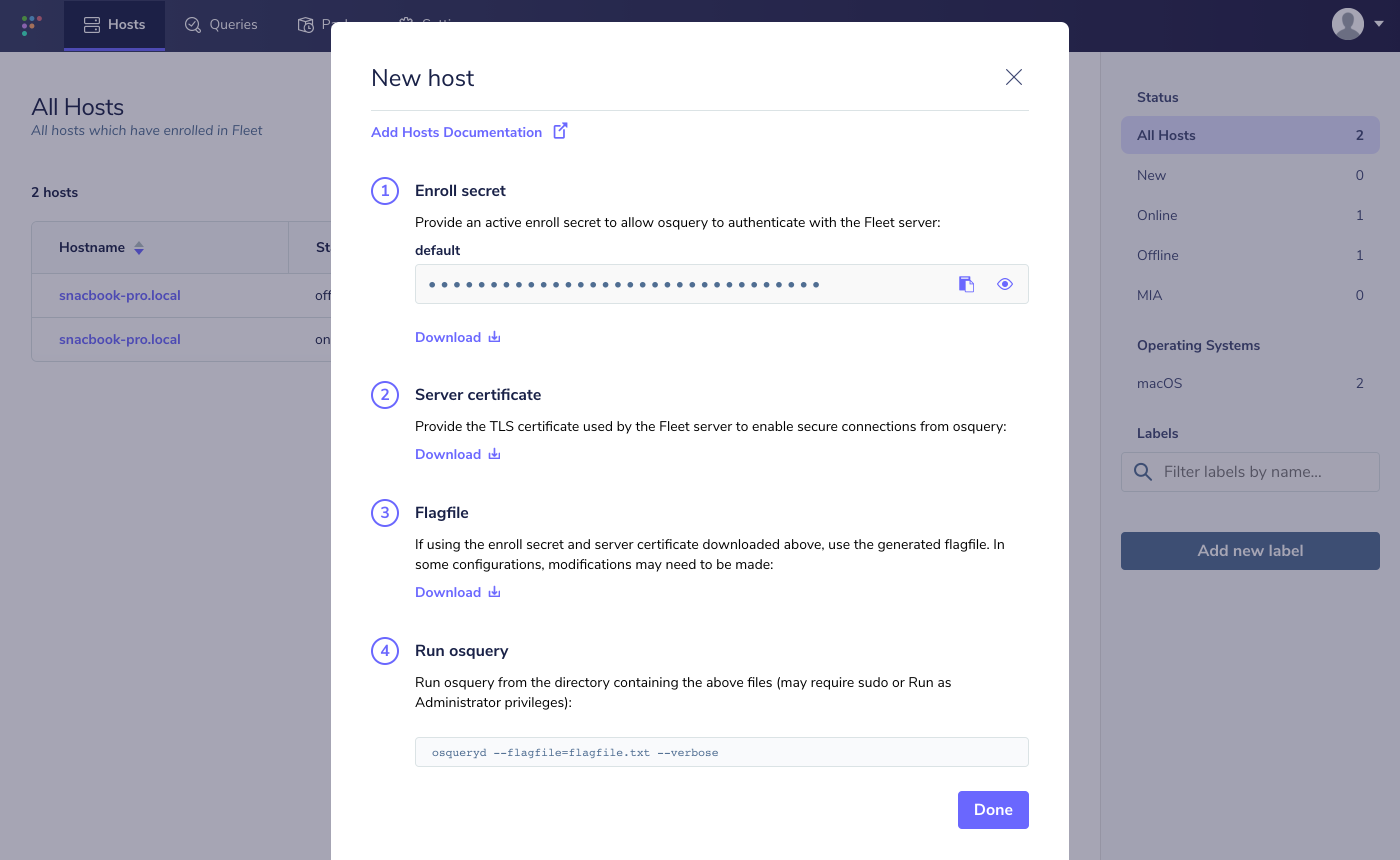
The images used in the docs live in docs/images/. Note that you must provide the URL of the image in the Fleet GitHub repo for it to display properly on both GitHub and the Fleet website.
Note that the instructions above also apply to adding images in the Fleet handbook.
Export an image for fleetdm.com
In Figma:
- Select the layers you want to export.
- Confirm export settings and naming convention:
- Item name - color variant - (CSS)size - @2x.fileformat (e.g.,
[email protected]) - Note that the dimensions in the filename are in CSS pixels. In this example, if you opened it in preview, the image would actually have dimensions of 32x32px but in the filename, and in HTML/CSS, we'll size it as if it were 16x16. This is so that we support retina displays by default.
- File extension might be .jpg or .png.
- Avoid using SVGs or icon fonts.
- Click the Export button.
Clearing cached images
TODO: This "clearing cached images section" can be moved to the engineering page as a responsibility, since most fleeties won't need to do it.
When replacing an existing image on the Fleet website, if the new version has the same filename as the old version, the image must be purged from the Cloudflare cache for the latest version to be visible to users.
To purge an image from the Cloudflare cache:
- Copy the URL of the image hosted on fleetdm.com.
- Log into Cloudflare and select the Fleet account, then select fleetdm.com.
- Select Caching » Configuration in the navigation sidebar, and click the "Custom Purge" option.
- Select the option to purge by URL, paste the URL of the image, and select purge. After a few moments, Cloudflare will serve the new version of the image to users.
Documentation meta tags
- Page order: The order we display documentation pages on fleetdm.com is determined by
pageOrderInSectionmeta tags. These pages are sorted in their respective sections in ascending order by thepageOrderInSectionvalue. Every Markdown file (except readme and faq pages) in thedocs/folder must have a meta tag with a positive 'pageOrderInSection' value.
We leave large gaps between values to make future changes easier. For example, the first page in the "Using Fleet" section of the docs has a pageOrderInSection value of 100, and the next page has a value of 200. The significant difference between values allows us to add, remove and reorder pages without changing the value of multiple pages at a time.
When adding or reordering a page, try to leave as much room between values as possible. If you were adding a new page that would go between the two pages from the example above, you would add <meta name="pageOrderInSection" value="150"> to the page.
Writing style
Fleet’s writing style is clear, simple, and welcoming. We use short sentences, plain English, and an active voice so anyone can follow along. Instead of sounding formal, we aim for approachable and easy to read. We infuse the company’s values into everything we write. That means being transparent, straightforward, and respectful of the reader’s time.
We avoid "puffery". For engineers, replace hype with real data. For business readers, translate it into clear outcomes such as time saved or return on investment. Links are better than long explanations, since they keep content short and point people to more detail when they need it.
Our approach is informed by Paul Graham's essays on writing simply and the clarity and optimism of Mister Rogers. To see how tone can shift from formal or negative to simple and optimistic, the "Mister Rogersing" example is a practical illustration of how reframing can make complex or difficult ideas more approachable.
When in doubt, simplify. Read your draft, cut unnecessary words, and make it shorter. If something feels confusing, rewrite until it feels obvious.
Writing types
Different types of writing at Fleet have slightly different expectations. Keep the shared principles in mind (plain English, brevity, clarity), but adjust for the format.
Guides and tutorials
- Write in short sentences, imperative mood, and active voice.
- Example: “Click Save.” not “The button should then be clicked.”
- Format as directional, step-by-step instructions, not narrative prose.
- Use bold text when referencing UI elements.
- Example: “Navigate to Hosts and click Add a host.”
- Surface the simple, high-level steps first.
- Place advanced or technical details, including troubleshooting, in a separate section at the bottom.
- Keep it practical, avoid marketing fluff, superlatives, and unnecessary adjectives.
Announcements
- Lead with the news. Put the key point in the first sentence.
- Keep it brief (two to four sentences).
- Use plain, factual language without fluff.
- Include a clear link or call to action if readers need to follow up.
Articles
- Keep the tone conversational and approachable, while still representing Fleet.
- Provide context or insight (the “why”), not just the “what.”
- Avoid jargon unless you explain it.
- Stay aligned with Fleet’s values and overall voice.
To propose an article for Fleet to publish, create an "📝 Article" issue and follow the instructions in the template.
Website copy
- Keep it simple: short sentences, plain English, imperative mood.
- Avoid fluff, filler, or jargon.
- Emphasize reader outcomes. Show what someone can do with Fleet, not just what Fleet is.
- Example: “Manage all your devices in one place” instead of “Fleet is the leading platform for device management.”
- Use headings and subheadings to make scanning easy.
- Keep calls to action direct and specific
- Example: “Try Fleet” instead of “Learn more about our amazing platform.”
Editing and publishing
Follow these steps before merging a change:
- Avoid unnecessary changes to headings, since this can break handbook links shared in other places.
- Link instead of duplicating content. If a concept exists elsewhere, link to it rather than restating it.
- Review your pull request carefully. Read the diff line by line until it looks intentional.
- Check preview mode in GitHub to make sure formatting renders correctly.
- Look for and remove any unintentional changes in your diff.
What would Mister Rogers say?
Mister Rogers’ Neighborhood was one of the longest-running children’s T.V. series. That’s thanks to Fred Rogers’ communication skills. He knew kids heard things differently than adults. So, he checked every line to avoid confusion and encourage positivity. Our audience is a little older. But just like the show, Mister Rogers’ method is appropriate for all ages. Here are some steps you can take to communicate like Mister Rogers:
- State the idea you want to express as clearly as possible.
- Rephrase the idea in a positive manner.
- Rephrase the idea, directing your reader to authorities they trust.
- Rephrase the idea to eliminate anything that may not apply to your reader.
- Add a motivational idea that gives your reader a reason to follow your advice.
- Rephrase the new statement, repeating the first step.
Consider this example tweet.
- Distributed workforces aren’t going anywhere anytime soon. It’s past time to start engaging meaningfully with your workforce and getting them to work with your security team instead of around them.
What would Mister Rogers say? The tweet could look something like this...
- Distributed workforces are here to stay. So, it’s a great time to help employees work with your security experts (and not around them). Because stronger teams get to celebrate more victories.
By Mister Rogersing our writing, we can encourage our readers to succeed by emphasizing optimism. You might not be able to apply all of these steps every time. That’s fine. Think of these as guidelines to help you simplify complex topics.
Writing assistance
Grammarly
All of our writers and editors have access to Grammarly, which comes with a handy set of tools, including:
- Style guide, which helps us write consistently in the style of Fleet.
- Brand tones to keep the tone of our messaging consistent with just the right amount of confidence, optimism, and joy.
- Snippets to turn commonly used phrases, sentences, and paragraphs (such as calls to action, thank you messages, etc.) into consistent, reusable snippets to save time.
Generative AI
Collaborating with AI can be helpful for outlines, rewrites, and drafts. But it’s not a substitute for judgment. You (a human) are responsible for accuracy, tone, and format.
- Don’t paste sensitive data.
- Always fact-check names, versions, dates, and links.
- Question everything you don't understand and strip out anything fabricated.
- Make sure the tone sounds like Fleet (plain English, short sentences, active voice) and watch for common AI habits like the overuse of em dashes, over-bolding, or passive voice.
Finally, check the format that you are writing for. Guides should be step-by-step instructions, announcements should be short and factual, and articles can be more conversational but still simple and professional.
Prompt template
Act as a Fleet editor. Audience: IT and security practitioners.
Goal: <what you need>.
Tone: simple, plain English; short sentences; imperative mood; active voice.
Format: <guide | announcement | article>.
Constraints:
- No marketing fluff, superlatives, or filler adjectives.
- Use sentence case for headings.
- For guides: numbered, step-by-step instructions; no narrative prose.
- Bold UI elements only (e.g., **Hosts**, **Add a host**).
- Prefer commas over em dashes; use colons sparingly.
Output: valid Markdown.
Writing mechanics
Writing mechanics cover everything from capitalization and punctuation to list formatting and SQL examples. Following them keeps our content consistent and easy to read. For Markdown-specific rules, see Writing in Fleet-flavored Markdown.
Sentence case
Fleet uses sentence case capitalization for all headings, subheadings, button text in the Fleet product, fleetdm.com, the documentation, the handbook, marketing material, direct emails, in Slack, and in every other conceivable situation. In sentence case, we write and capitalize words as if they were in sentences:
Ask questions about your servers, containers, and laptops running Linux, Windows, and macOS.
As we use sentence case, only the first word is capitalized. But, if a word would normally be capitalized in the sentence (e.g., a proper noun, an acronym, or a stylization) it should remain capitalized.
- Proper nouns ("Nudge", "Skimbleshanks", "Kleenex")
- "Yeah, we use Nudge."
- "Introducing our friend, Skimbleshanks."
- "Please, can I have a Kleenex?"
- Acronyms ("MDM", "REST", "API", "JSON")
- "MDM commands in Fleet are available over a REST API that returns JSON."
- Stylizations _("macOS", "osquery", "MySQL", "APNs")
- "Although 'macOS' is a proper noun, macOS uses its own style guide from Apple, to which we adhere."
- "Zach is the co-creator of osquery."
- "Does it work with MySQL?"
- "Does it use APNs (the Apple Push Notification service)?"
Struggling with this? It takes some adjustment, and you need repetitions of seeing things written this way and correcting yourself. Contributors have given feedback that this opinionated solution is a huge relief once you build the habit of sentence case capitalization. You don't have to think as hard, nor choose between flouting and diligently adhering to the style guide.
Capitalization and proper nouns
- Fleet: When talking about Fleet the company, we stylize our name as either "Fleet" or "Fleet Device Management".
- Fleet the product: We always say “Fleet”. We NEVER say "fleetDM" or "FleetDM" or "fleetdm".
- Team members: Core team members are “Fleeties".
- Group of devices or virtual servers: Use "fleet" or "fleets" (lowercase).
- Osquery: Osquery should always be written in lowercase unless used to start a sentence or heading.
- Fleetd: Fleetd should always be written in lowercase unless used to start a sentence or heading.
- Fleetctl: Fleetctl should always be written in lowercase unless used to start a sentence or heading. Fleetctl should always be in plain text and not inside codeblocks text unless used in a command (ex.
fleetctl -help).
Line breaks and new lines
✅ Do use line breaks to separate paragraphs and break up large chunks of text for the reader.
❌ Don’t use line breaks to separate each sentence to optimize the code for the author.
Overused line breaks cause irregular line spacing on our website and make it hard for the author to experience the content as the reader will.
Whenever you need to add a line break in Markdown, simply add an extra blank line between the two pieces of content you want to separate. For example, if you were adding this section:
line one
line two
The Markdown would render on the Fleet website as
line one

line two
To make sure formatting is consistent across GitHub and the Fleet website, you need to add a new line anywhere you want a line break. For example, if we separate the lines with a new line:
line one
line twoThe Markdown will render correctly as
line one
line two
Links and anchors
✅ Do use the full url when creating links, e.g. [links](https://fleetdm.com/handbook/company/communications#links. This ensures the link will work even if the content gets moved to another page.
✅ Do make links meaningful (avoid “here” / “click here”); link descriptive words.
✅ Do link to existing pages instead of duplicating content.
✅ Do favor permalinks and headings that make good anchors (people link to sections).
❌ Don’t use relative links, e.g. [links](#links) to link to other content on the same page.
Note: We run grep -Eir --exclude-dir=node_modules --include=*.md '[(click )?here]' . in CI to make sure those link anchors don't slip in.
The Fleet website currently supports the following Markdown link types.
Inline link
It's a classic.
- Markdown:
[This is an inline link](https://domain.com/example.md) - Rendered output: This is an inline link
Link with a tooltip
Adding a tooltip to your link is a great way to provide additional information.
- Markdown:
[This is link with a tooltip](https://domain.com/example.md "You're awesome!") - Rendered output: This is link with a tooltip
Emails
To create a mailto link... oh wait, I'm not going to tell you.
- Important: To avoid spam, we NEVER use mailto links.
"Device" vs "endpoint"
- When talking about a users' computer, we prefer to use "device" over endpoint. Devices in this context can be a physical device or virtual instance that connect to and exchange information with a computer network. Examples of devices include mobile devices, desktop computers, laptop computers, virtual machines, and servers.
Headings and titles
Headings and titles should:
- Give an accurate idea of a topic's content.
- Help guide readers through your writing so they can quickly find what they need.
- Make good permalinks.
Each heading needs two lines of empty space separating it from the previous section and one line of empty space between the heading and related content. This helps break up blocks of text and is especially important on larger, more detailed pages. Here's an example:
...previous content.
<!-- Empty space -->
<!-- Empty space -->
### New heading
<!-- Empty space -->
Related content...
Nested headings
Wherever possible, avoid creating nested headings, especially headings with no content. For example:
### Things

#### Thing 1

Hi my name is Thing 1
Heading levels
Try to stay within three or four heading levels. Complicated documents may use more, but pages with a simpler structure are easier to read.
| Markdown | Rendered heading |
|---|---|
# Heading 1 |
Heading 1 |
## Heading 2 |
Heading 2 |
### Heading 3 |
Heading 3 |
#### Heading 4 |
Heading 4 |
Static headings
Use static headings (a noun or noun phrase) e.g., “Log destinations,” for concept or reference topics. Be as short and specific as possible.
Task-based headings
Use task-based headings (verb + topic) e.g., “Configure a log destination,” for guides and tutorials where the heading should reveal the task that the reader is trying to achieve.
Avoid -ing verb forms in headings
Avoid starting a heading with -ing verb form, if possible.
-ing verb forms are more difficult for non-native English readers to understand, translate inconsistently, and increase character counts in limit spaces, such as in docs navigation.
| ✅ Recommended | ❌ Not recommended |
|---|---|
| “Configure a log destination” | “Configuring a log destination” |
Avoid vague verbs in headings
Where possible, avoid starting a heading with a vague verb, like “understand,” “learn,” or “Use.” Headings that start with a vague verb can mislead readers by making a topic appear to be task-oriented (a guide) when it is actually reference or conceptual information.
| ✅ Recommended | ❌ Not recommended |
|---|---|
| “Log destinations” | “Understand log destinations.” |
Avoid code in headings
While our readers are more tech-savvy than most, we can’t expect them to recognize queries by SQL alone. Avoid using code for headings. Instead, say what the code does and include code examples in the body of your document. That aside, it doesn't render well on the website.
Heading hierarchy
Use heading tags to structure your content hierarchically. Try to stay within three or four heading levels. Detailed documents may use more, but pages with a simpler structure are easier to read.
- H1: Page title
- H2: Main headings
- H3: Subheadings
- H4: Sub-subheadings
Punctuation in headings
Fleet headings do not use end punctuation unless the heading is a question:
Learn how to use osquery, nanoMDM, and Nudge to manage and monitor laptops and servers running Linux, Windows, ChromeOS, and macOS
If the heading is a question, end the heading with a question mark.
Contractions
They’re great! Don’t be afraid to use them. They’ll help your writing sound more approachable.
Ampersands
(&) Only use ampersands if they appear in a brand name, or if you’re quoting the title of an article from another source. Otherwise, write out “and”.
Commas
When listing three or more things, use commas to separate the words. This is called a serial comma.
✅ Do: Fleet is for IT professionals, client platform engineers, and security practitioners.
❌ Don’t: Fleet is for IT professionals, client platform engineers and security practitioners.
Aside from the serial comma, use commas, as usual, to break up your sentences. If you’re unsure whether you need a comma, saying the sentence aloud can give you a clue. If you pause or take a breath, that’s when you probably need a comma.
Hyphens
✅ Do use a hyphen to indicate a range:
- Monday-Friday
✅ Do use a hyphen for compound modifiers. This is when 2 or more words function as one adjective. Compound modifiers precede the noun they modify:
- We release Fleet on a three-week cadence.
- Osquery is an open-source agent.
❌ Don’t use a hyphen when modifying words follow the noun:
- Fleet is released every three weeks.
- Osquery is open source.
Colons
Colons introduce one or more elements that add detail to the idea before the colon.
✅ Do use a colon to introduce a list:
- The Fleet product has 4 interfaces: Fleet UI, REST API, fleetctl CLI, and Fleet Desktop.
✅ Do use a colon to introduce a phrase (Only capitalize the first word following a colon if it’s a proper noun):
- Introducing Sandbox: the fastest way to play with Fleet.
Exclamation points
They’re fun! But too many can undermine your credibility!!!1! Please use them sparingly. Take context into consideration. And only use one at a time.
Abbreviations and acronyms
If there’s a chance your reader won’t recognize an abbreviation or acronym, spell it out the first time you mention it and specify the abbreviation in parentheses.
Then use the short version for all other references.
- A command-line interface (CLI) is a text-based user interface (UI) used to run programs, manage computer files, and interact with the computer.
- The Fleet CLI is called fleetctl. If the abbreviation or acronym is well known, like API or HTML, use it instead (and don’t worry about spelling it out).
Numbers
Spell out a number when it begins a sentence. Otherwise, use the numeral.
Sometimes numerals seem out of place. If an expression typically spells out the number, leave it as is:
- First impression
- Third-party integration
- All-in-one platform
Numbers over 3 digits get commas:
- 999
- 1,000
- 150,000
Times
Use numerals and am or pm without a space in between:
- 7am
- 7:30pm
Use a hyphen between times to indicate a time period:
- 7am–10:30pm
We have users and Fleeties all over the world.🌎 Specify time zones when scheduling events or meetings.
Abbreviate time zones within the continental United States as follows:
- Eastern time: ET
- Central time: CT
- Mountain time: MT
- Pacific time: PT
Spell out international time zones:
- Central European Time
- Japan Standard Time
Emphasis
| Markdown | Rendered text |
|---|---|
**Bold** |
Bold |
*Italic* |
Italic |
***Bold italic*** |
Bold italic |
~~Strikethrough~~ |
Bold: Use bold text to emphasize words or phrases. Just don’t overdo it. Too much bold text may make it hard to see what’s really important.
Italics: Use italics when referencing UI elements (e.g., buttons and navigation labels):
- On the settings page, go to Organization Settings and select Fleet Desktop.
Lists
Lists should be as concise and symmetrical as possible. If you find your list running long, or if each item contains several sentences, consider whether a list is the best approach.
Ordered list vs. unordered list
If your list follows a specific order or includes a set number of items, use an ordered list by numbering each item. Otherwise, use an unordered list represented by bullet points.
Ordered lists
Ordered lists are represented by numbering each line item.
| Markdown | Rendered list |
|---|---|
1. Line one |
1. Line one 2. Line two 3. Line three 4. Line four |
1. Line one |
1. Line one 1. Indent one 2. Line two 3. Line three 1. Indent one 2. Indent two 4. Line four |
Markdown:
1. Item one

Paragraph about item one

2. Item two
Rendered output:
- Item one
Paragraph about item one
- Item two
Unordered lists
Unordered lists are represented by using a hyphen at the beginning of each line item.
| Markdown | Rendered list |
|---|---|
- Line one |
- Line one - Line two - Line three - Line four |
- Line one |
- Line one - Indent one - Line two - Line three - Indent one - Indent two - Line four |
How to introduce a list
✅ Do use a colon if you introduce a list with a complete sentence.
❌ Don’t use a colon if you start a list right after a heading.
How to use end punctuation with list items
End punctuation refers to punctuation marks that are used to end sentences, such as periods, question marks, and exclamation points.
✅ Do use end punctuation if your list items are complete sentences:
- Project confidence and be informative.
- Educate users about security threats positively.
- We never use fear as a marketing tactic.
❌ Don’t use end punctuation if your list items are sentence fragments, single words, or short phrases:
- Policies
- Enterprise support
- Self-hosted agent auto-updates
❌ Don’t mix complete sentences with sentence fragments, single words, or short phrases. Consistent formatting makes lists easier to read.
❌ Don’t use commas or semicolons to end bullet points.
How to capitalize list items
✅ Do use a capital letter at the beginning of every bullet point. The only exceptions are words that follow specific style guides (e.g., macOS).
Tables
To create a table, start with the header by separating rows with pipes (" | "). Use dashes (at least 3) to separate the header, and add colons to align the text in the table columns.
Markdown:
| Category one | Category two | Category three |
|:---|---:|:---:|
| Left alignment | Right alignment | Center Alignment |
Rendered output:
| Category one | Category two | Category three |
|---|---|---|
| Left alignment | Right alignment | Center Alignment |
When using tables to document API endpoint parameters, we use the following conventions:
- Document nested objects in their own separate tables. See the Modify configuration documentation for example formatting.
- In the Type column, use the terms "boolean" (not "bool"), and "array" (not "list").
- In the Description column for required parameters, begin the description with "Required."
Blockquotes
To add a tip blockquote, start a line with ">" and end the blockquote with a blank newline.
Tip blockquotes
Tip blockquotes are the default blockquote style in our Markdown content.
- Markdown:
> This is a tip blockquote.
This line is rendered inside of the tip blockquote.

This line is rendered outside of the tip blockquote.- Rendered output:
This is a tip blockquote. This line is rendered inside of the tip blockquote.
This line is rendered outside of the tip blockquote.
Quote blockquotes
To add a quote blockquote, add a <blockquote> HTML element with purpose="quote".
- Markdown:
<blockquote purpose="quote">
This is a quote blockquote.

Lines seperated by a blank newline will be rendered on a different line in the blockquote.
</blockquote>- Rendered output:
This is a quote blockquote.Lines seperated by a blank newline will be rendered on a different line in the blockquote.
Large quote blockquote
You can add a large quote blockquote by adding a <blockquote> HTML element with purpose="large-quote".
- Markdown:
<blockquote purpose="large-quote">
This is a large blockquote.

You can use a large quote blockquote to reduce the font size and line height of the rendered text.
</blockquote>- Rendered output:
This is a large blockquote.You can use a large quote blockquote to reduce the font size and line height of the rendered text.
SQL statements
When adding SQL statements, all SQL reserved words should be uppercase, and all identifiers (such as tables and columns) should be lowercase. Here’s an example:
SELECT days, hours, total_seconds FROM uptime;
 Back to top
 SOC2 Type 2


